Updated October 14, 2026. Written for WordCraft 0.6.1 (what changed since).
Set your name first
Tracked changes and comments carry the name of whoever made them. WordCraft starts every visit as "WordCraft User", because the browser version doesn't remember settings between visits. Click File › Options and fill in User name and Initials before your first edit. Otherwise every change and comment you make is credited to "WordCraft User".
Steps to review a document
- Open the document. Go to wordcraft.run/editor and drag the .docx onto the page, or use File › Open. Changes and comments already in the file show up straight away.
- Turn on Track Changes. On the Review tab, click Track Changes, or press Ctrl/⌘+Shift+E. The button shows a tick while tracking is on.
- Edit as normal. Inserted text is coloured and underlined, deleted text is struck through, and a bar in the margin marks each changed line. Formatting changes are tracked too, as "Formatted: …" balloons. Cut a paragraph and paste it elsewhere and it is recorded as a move, in green, with "Moved from" and "Moved to" at either end.
- Comment. Select the words you're commenting on, click New Comment on the Review tab (Ctrl/⌘+Alt+M) and type. Each balloon has Reply and Resolve buttons; Show Comments opens them all in a pane.
- Save with Ctrl/⌘+S. You get a .docx with the same name. Chrome and Edge ask where to save it; Firefox and Safari put it in Downloads. Send that file back.
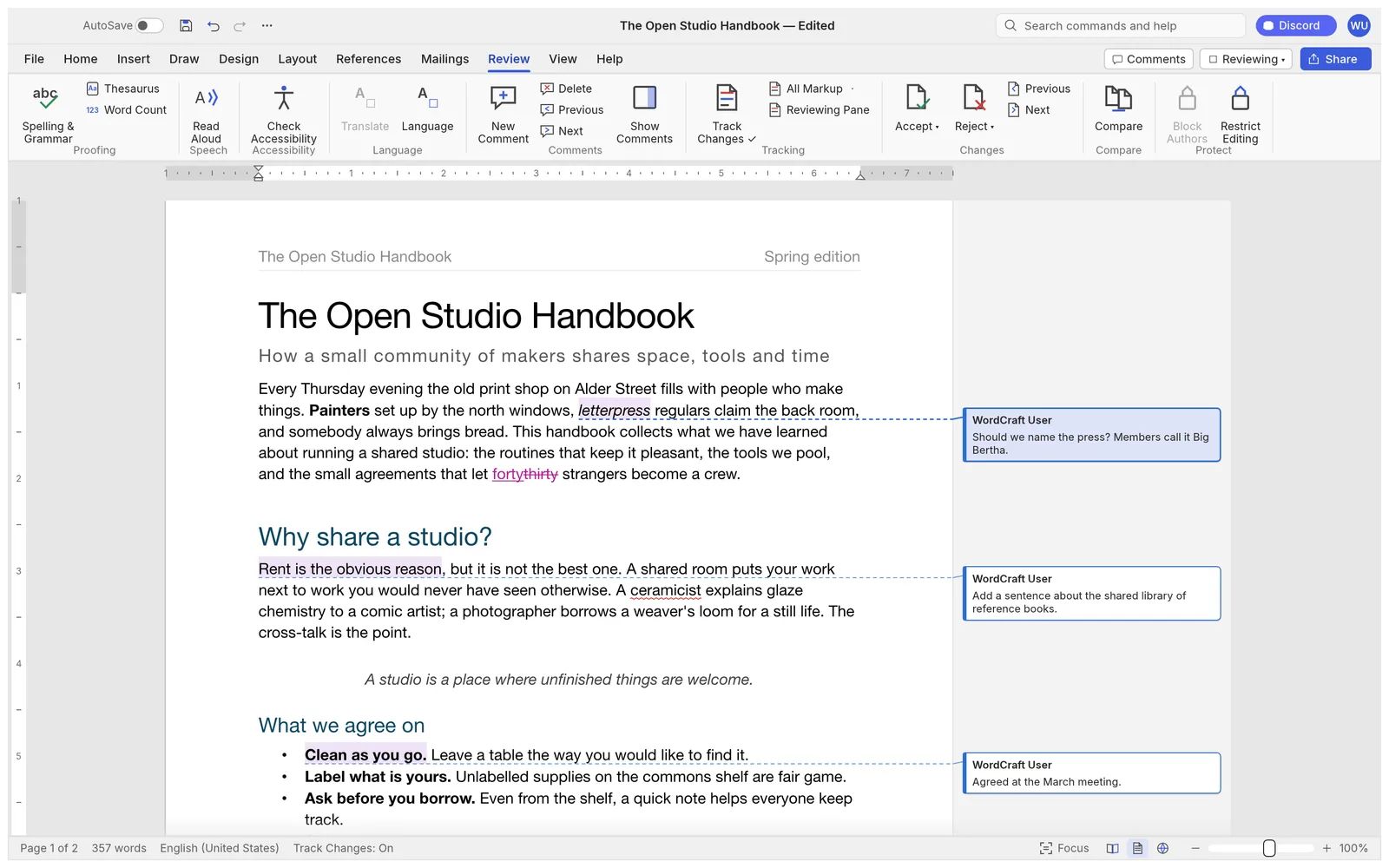
Going through someone else's changes
When the file comes back to you with a colleague's edits, the right half of the Review tab does the work. Next and Previous in the Changes group jump from one change to the next. The Accept button takes the change at the cursor, and its menu has Accept All Changes. Reject works the same way, with Reject All Changes in its menu. A move can be accepted or rejected from either end.
Two views help on a busy document. Reviewing Pane lists the changes in one column, which is easier to work down than a long document. Display for Review switches between All Markup and No Markup; No Markup shows the text as it would read if you accepted everything, which is the easiest way to judge whether the edited sentences still make sense.
Some senders lock a document so that every edit must be tracked, using Word's Restrict Editing. WordCraft reads that protection and writes it back when you save, so the lock is still there when the file returns.
What Word sees when you send it back
| In your .docx | In Word |
|---|---|
| Insertions and deletions, including deleted paragraph breaks | Tracked changes under your name, to accept or reject |
| Formatting changes (font, paragraph, table, numbering) | Tracked formatting changes |
| Moved text | Tracked moves, linked at both ends |
| Comments, replies, resolved state | Comments in the margin |
| Word's newer threaded comments with @mentions | Kept only partly; mentions aren't supported |
Review in .docx. OpenDocument (.odt) files keep no tracked changes or comments at all in WordCraft, and Rich Text (.rtf) keeps them only thinly. If you were sent an .odt or .rtf, save it as .docx first (Ctrl/⌘+S does that) and review the .docx. An old .doc is the same story; see converting .doc to .docx.
Limits in the browser
- Compare needs the desktop app. Review › Compare, which marks the differences between two versions as tracked changes, has to read a second file, and the browser version tells you "Comparing with another file needs the desktop app." The desktop app compares and combines documents, at word or character level.
- No autosave. Nothing is written until you save, so press Ctrl/⌘+S after each section of a long review. The browser asks before you close a tab with unsaved changes.
- Spelling is checked in English. The desktop app also checks Polish and Brazilian Portuguese, using a dictionary installed on the computer; a browser tab can't reach one.
- Fonts. The browser draws text in WordCraft's built-in fonts, so lines can wrap differently from the sender's screen. The font names in the file don't change.
WordCraft is alpha software, and its developers put it at about 60% of the way to replacing Word. They rate the review features higher, at 72% of Word's. Even so, keep the original file until the reviewed copy has opened cleanly on the other side.
Sending a PDF with the markup
If the reader only needs to see your comments, not edit, send a PDF. On the File tab, open Print and tick Print Markup; PDFs exported after that show comments in balloons beside each page, with the tracked changes visible. Then choose File › Export › PDF document (*.pdf). Without the tick, the PDF shows the text as if every change had been accepted. More on PDFs in Word to PDF.
When another tool fits better
WordCraft suits one reviewer working through a file alone. If three people need to comment on the same copy at once, use a shared editor: Word for the web is free with a Microsoft account but keeps the file in OneDrive, and Google Docs can edit and comment on a .docx in place once it's uploaded to Drive, saving back in Word's format. Both mean the document lives in someone's cloud, which is often exactly what a contract or an HR file shouldn't do.
Before you send the reviewed file, run through this: your name, not "WordCraft User", is on your comments (Show Comments lists each author), every comment you meant to resolve is resolved, Track Changes is still on if the sender asked for it, and the file you're attaching is the .docx you just saved, not the original.